
- Introduction
- Finding Sources - Books
- Finding Sources - Journal Articles
- Research Skills
- Mendeley
- Plagiarism
- Citing Sources
- Off-Campus Access

This guide is designed to help you find, evaluate, and cite academic sources as you complete your ENG 101 / 102 assignments. Use the tabs above to navigate topics such as searching for books and articles, developing your research skills, citing sources properly, and contacting a librarian for help.
Click here for Syllabus of Academic English Program.
You can contact the librarians through the channels listed below.
- Online Chat: Through the chat system, you can receive instant answers from librarians to your questions on weekdays between 09:00 and 17:00.
- E- mail: You can send your questions to library@bilkent.edu.tr or reference@bilkent.edu.tr.
- Phone: You can reach us at +90 (312) 290 1298 on weekdays between 08:30 and 23:30, and on weekends between 09:00 and 23:30.
- Visit: For your questions, you can visit the Circulation Desk at the Main Campus Library or the East Campus Library in person during all open hours.
Library Web Page: Main portal for accessing all Bilkent University Library services. Use it to explore research support, opening hours, contact information, and announcements.
Databases A–Z: A full list of the Library's subscribed academic databases. You can search for peer-reviewed articles, journals, newspapers, and more. Use filters like subject or type.
E-books: Access the databases which covers electronic books as source from major academic publishers. Most e-books can be read online or downloaded for offline use (VPN required off-campus).
E-Journals: View the electronic or print journals you have access to through the library.
Research & Learning Tools: Learn how to search effectively, evaluate sources, and cite properly. Includes citation guides, Zotero tutorials, and tips for avoiding plagiarism.
Faculty Librarian: Meet your faculty librarian.
Databases A–Z: A full list of the Library's subscribed academic databases. You can search for peer-reviewed articles, journals, newspapers, and more. Use filters like subject or type.
E-books: Access the databases which covers electronic books as source from major academic publishers. Most e-books can be read online or downloaded for offline use (VPN required off-campus).
E-Journals: View the electronic or print journals you have access to through the library.
Research & Learning Tools: Learn how to search effectively, evaluate sources, and cite properly. Includes citation guides, Zotero tutorials, and tips for avoiding plagiarism.
Faculty Librarian: Meet your faculty librarian.
Library Catalog
The library provides search engines to help you easily access the resources you are looking for. One of these is the "Library Catalog". The Library Catalog lists materials available at the library, including print and electronic resources, periodicals, student projects, and multimedia.
To search in the Library Catalog, after accessing the library website, you can select "Library Catalog" from the dropdown menu next to the search box. Once you make this selection and enter your search term, the results will be retrieved from the Library Catalog.

After the search, the results page will display both electronic and print resources. You can identify the type of resource by the icon shown in the "Format" section. A book icon indicates a print resource, while a web page icon represents an electronic resource. The results page also provides access information for both types of resources: for print materials, this is given as a call number, while for electronic materials, it is provided as an access link.

To access an electronic resource, simply click on the access link. If you are on campus, you will be directed to the resource. However, if you are off campus, you need to establish a VPN connection first in order to access electronic resources. Most electronic resources can also be downloaded as PDFs to read on your device.

To access a print book, you need to locate it in the library by using its call number. You can use the library plan to find its location.

Quick Search
By using "Quick Search", you can access results from the Bilkent University Library collection as well as from subscribed databases and open access resources.

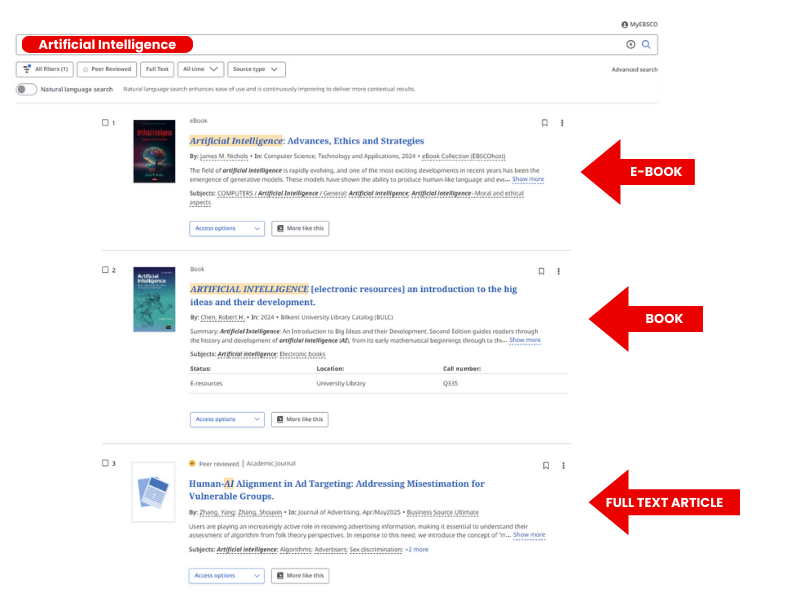
When you make a search using Quick Search, resource types related to your keyword will appear as results.
The library provides search engines to help you easily access the resources you are looking for. One of these is the "Library Catalog". The Library Catalog lists materials available at the library, including print and electronic resources, periodicals, student projects, and multimedia.
To search in the Library Catalog, after accessing the library website, you can select "Library Catalog" from the dropdown menu next to the search box. Once you make this selection and enter your search term, the results will be retrieved from the Library Catalog.
After the search, the results page will display both electronic and print resources. You can identify the type of resource by the icon shown in the "Format" section. A book icon indicates a print resource, while a web page icon represents an electronic resource. The results page also provides access information for both types of resources: for print materials, this is given as a call number, while for electronic materials, it is provided as an access link.
To access an electronic resource, simply click on the access link. If you are on campus, you will be directed to the resource. However, if you are off campus, you need to establish a VPN connection first in order to access electronic resources. Most electronic resources can also be downloaded as PDFs to read on your device.
To access a print book, you need to locate it in the library by using its call number. You can use the library plan to find its location.
Quick Search
By using "Quick Search", you can access results from the Bilkent University Library collection as well as from subscribed databases and open access resources.
When you make a search using Quick Search, resource types related to your keyword will appear as results.
One way to access full-text articles is by performing a search in Quick Search.

When you search using Quick Search, results from various resource types will appear. To access only articles, you can use the filters on the left side of the page. In the screenshot below, selecting "Available in Library" will ensure that only full-text results are displayed, while selecting "Scholarly (Peer Reviewed) Journals" will limit results to articles from peer-reviewed journals. Resource type is also among the selectable filters.

After searching in Quick Search, you can access the full text of articles by clicking the "Full Text" icon on the results page. Additionally, you can download the articles as PDF files to your device or click the "Cite" icon to retrieve the article's citation information.

When you search using Quick Search, results from various resource types will appear. To access only articles, you can use the filters on the left side of the page. In the screenshot below, selecting "Available in Library" will ensure that only full-text results are displayed, while selecting "Scholarly (Peer Reviewed) Journals" will limit results to articles from peer-reviewed journals. Resource type is also among the selectable filters.
After searching in Quick Search, you can access the full text of articles by clicking the "Full Text" icon on the results page. Additionally, you can download the articles as PDF files to your device or click the "Cite" icon to retrieve the article's citation information.
Another option to locate full text journal articles is to use the quick access link to "Databases" available under the E-Collection menu.

Under the Databases menu, you can see an alphabetical list of the databases accessible through the library. If you wish, you can filter this list by subject or resource type.

E-Journals under the E-Collection menu can also be used to search for journal titles.

In the E-journals search box, you can search for the title of the journal you want to access and view the available issues we have access to, as well as the format of the journal (electronic or print).

To check whether a print journal is available in the collection, you can search for the journal title in the Library Catalog. To access back issues of a print journal, please ask a librarian for assistance. Current issues can be found in the reading rooms located on the 1st floor of Block A and Block B.

Under the Databases menu, you can see an alphabetical list of the databases accessible through the library. If you wish, you can filter this list by subject or resource type.
E-Journals under the E-Collection menu can also be used to search for journal titles.
In the E-journals search box, you can search for the title of the journal you want to access and view the available issues we have access to, as well as the format of the journal (electronic or print).
To check whether a print journal is available in the collection, you can search for the journal title in the Library Catalog. To access back issues of a print journal, please ask a librarian for assistance. Current issues can be found in the reading rooms located on the 1st floor of Block A and Block B.

Using quotation marks (" ") and parentheses ( ) helps you control how the search engine interprets your query.
Quotation Marks
You can use quotation marks to search for an exact phrase, not just individual words.
 "social media" → Searches for that exact phrase
 social media → Results may include social in one part of the text and media elsewhere
Parentheses
Use parentheses to group search terms and control the logic in your Boolean query.
("social media" AND (depression OR anxiety)) NOT Facebook
Quotation Marks
You can use quotation marks to search for an exact phrase, not just individual words.
"social media" → Searches for that exact phrase social media → Results may include social in one part of the text and media elsewhereParentheses
Use parentheses to group search terms and control the logic in your Boolean query.
("social media" AND (depression OR anxiety)) NOT Facebook
What it means:
-
The phrase "social media" must appear
-
AND either the word depression or anxiety must also appear
-
BUT the word Facebook must not be in the results
Quick Search and Library Catalog offer you two search options to use while browsing: Basic Search and Advanced Search.

Quick Search Advanced Search;

- Basic search involves using a single search box and is ideal for quick look-ups. However, it offers limited filtering options compared to advanced search features.
- Advanced search allows you to use multiple fields such as title, author, or subject, and provides filters for date, language, and format. It also makes it easier to apply Boolean operators, making it ideal for academic research.
Quick Search Advanced Search;
The Mendeley Reference Manager app is available for the Windows, Mac, & Linux operating systems.
Download the app here: 1. Click on “Mendeley (Reference Management Software)” on the library’s “Research and Learning Tools” page.

2. Click the Download button.

3. Select the option suitable for your operating system and click the Download button.

4. Run the downloaded .exe file.

5. Click the Install button.

6. Click the Finish button.

Download the app here: 1. Click on “Mendeley (Reference Management Software)” on the library’s “Research and Learning Tools” page.
2. Click the Download button.
3. Select the option suitable for your operating system and click the Download button.
4. Run the downloaded .exe file.
5. Click the Install button.
6. Click the Finish button.
1. After launching the Mendeley Reference Manager for Desktop application, click the “Sign in via your organization” button.

2. Type "Bilkent University" into the search bar and select it.

3. Use your Bilkent ID number as your username and STARS/BAIS password as your password.

4. Click the "Yes, continue" button.

5. You can start using Mendeley.

For information on how to use Mendeley and install plugins, please check the "Mendeley" subject guide.
2. Type "Bilkent University" into the search bar and select it.
3. Use your Bilkent ID number as your username and STARS/BAIS password as your password.
4. Click the "Yes, continue" button.
5. You can start using Mendeley.
For information on how to use Mendeley and install plugins, please check the "Mendeley" subject guide.
Plagiarism is the act of using someone else’s words, ideas, or work without giving proper credit. This includes:
- Copying and pasting from a website or article
- Paraphrasing without citation
- Submitting someone else’s work as your own
- Using AI tools or translation tools without acknowledgement (if not allowed)
There are tools that can help to identify plagiarism.
Turnitin
Akademik İntihal
Turnitin
- Used by instructors at Bilkent University.
- Students do not have direct access.
- The similarity report is reviewed by your instructor.
- Turnitin can also detect the use of artificial intelligence.
Akademik İntihal
- A plagiarism detection tool you can access yourself.
- Create a free student account at https://app.intihal.net/?modul=kullanici_yeni (You have to use your bilkent.edu.tr e-mail address).
- Request an access code from your instructor or advisor to generate a similarity report.
- Upload your draft and receive a similarity report.
- Helps you see which parts need better citation or rewriting.
- Interface available in Turkish and English.
Citing your sources is an essential part of academic writing because it shows where your ideas come from, gives credit to original authors, helps you avoid plagiarism, and allows others to follow your research trail.
You can create personal lists in your library account to save and organize resources while searching the catalog. First, log in to your library account. After logging in, click on the "My Lists" option at the top of the page.

After clicking on "My Lists", you can create a new list to organize your saved items. To do this, click on the "Add List" icon (shown in the red box).

You can then give your list a name and start adding items from the catalog search results into it.

While searching the catalog, you can easily add items to your personal lists. To do this, first select the item(s) you want to save by checking the box next to the title. Then, from the Select an Action drop-down menu, choose Add to My Lists.


When you add an item to your list, a confirmation box will appear on the screen. This message shows that the item has been successfully added.
After clicking on "My Lists", you can create a new list to organize your saved items. To do this, click on the "Add List" icon (shown in the red box).
You can then give your list a name and start adding items from the catalog search results into it.
While searching the catalog, you can easily add items to your personal lists. To do this, first select the item(s) you want to save by checking the box next to the title. Then, from the Select an Action drop-down menu, choose Add to My Lists.
When you click to Add to My Lists, the system will ask you to choose which list to save it to. You can select one of your permanent lists (such as favorites) or place it in the Temporary List. Items saved in a permanent list will remain available the next time you log in, while items in a temporary list may not be stored permanently.
When you add an item to your list, a confirmation box will appear on the screen. This message shows that the item has been successfully added.
There are several standardized citation styles used in academic writing. Each discipline typically prefers a specific style. Below are the most commonly used ones:
APA (American Psychological Association)
Common in: Psychology, Education, Social Sciences
Example: Smith, J. (2022). Social behavior and media. Academic Press.
MLA (Modern Language Association)
Common in: Literature, Arts, Humanities
Example: Smith, John. Social Behavior and Media. Academic Press, 2022.
Chicago
Common in: History, Fine Arts, Philosophy
Example: John Smith, Social Behavior and Media (Academic Press, 2022).
Harvard
Common in: Many disciplines in UK, Europe
Example: Smith, J. (2022) Social behavior and media, Academic Press.
IEEE (Institute of Electrical and Electronics Engineers)
Common in: Engineering, Computer Science
Uses numbered references in-text
Example: [1] J. Smith, Social Behavior and Media, Academic Press, 2022.
NLM (National Library of Medicine)
Common in: Medicine, Health Sciences, Biomedical fields
Uses numbered references in-text. Typically used in journals indexed in PubMed and similar databases.
Example: Smith J. Social behavior and media. Chicago: University of Chicago Press; 2022.
Quick Study Guides:
Bilwrite Citation Guides
APA Guidelines - 7th Edition
MLA Guidelines - 9th Edition
Chicago Manual Of Style Guidelines
Harvard Style Guide
APA (American Psychological Association)
Common in: Psychology, Education, Social Sciences
Example: Smith, J. (2022). Social behavior and media. Academic Press.
MLA (Modern Language Association)
Common in: Literature, Arts, Humanities
Example: Smith, John. Social Behavior and Media. Academic Press, 2022.
Chicago
Common in: History, Fine Arts, Philosophy
Example: John Smith, Social Behavior and Media (Academic Press, 2022).
Harvard
Common in: Many disciplines in UK, Europe
Example: Smith, J. (2022) Social behavior and media, Academic Press.
IEEE (Institute of Electrical and Electronics Engineers)
Common in: Engineering, Computer Science
Uses numbered references in-text
Example: [1] J. Smith, Social Behavior and Media, Academic Press, 2022.
NLM (National Library of Medicine)
Common in: Medicine, Health Sciences, Biomedical fields
Uses numbered references in-text. Typically used in journals indexed in PubMed and similar databases.
Example: Smith J. Social behavior and media. Chicago: University of Chicago Press; 2022.
Quick Study Guides:
Bilwrite Citation Guides
APA Guidelines - 7th Edition
MLA Guidelines - 9th Edition
Chicago Manual Of Style Guidelines
Harvard Style Guide
When you find a source in EBSCO that you would like to reference in your research, you can easily generate a citation by using the "Cite" option. After locating the item in the search results, click on the three-dot menu to the right of the record and select "Cite".

After clicking on the Cite option, a box will appear. From here, you can choose the citation style you need (for example, APA, MLA, Chicago, Harvard, and many others) from the drop-down list. Once you have selected your preferred style, you can either copy the citation to paste it into your bibliography.

EBSCO also allows you to export citations directly to reference management tools. By selecting Export citation, you can send the reference to EasyBib, RefWorks, EndNote Web, NoodleTools, or download it in RIS format for use in citation managers such as Mendeley, Zotero, ProCite, EndNote, and others. This feature makes it simple to organize and manage your references in the tool of your choice.

After clicking on the Cite option, a box will appear. From here, you can choose the citation style you need (for example, APA, MLA, Chicago, Harvard, and many others) from the drop-down list. Once you have selected your preferred style, you can either copy the citation to paste it into your bibliography.
EBSCO also allows you to export citations directly to reference management tools. By selecting Export citation, you can send the reference to EasyBib, RefWorks, EndNote Web, NoodleTools, or download it in RIS format for use in citation managers such as Mendeley, Zotero, ProCite, EndNote, and others. This feature makes it simple to organize and manage your references in the tool of your choice.
You can use citation tools to help collect, organize, and format your sources. These tools can save you time and help you stay consistent when writing academic papers.
| Tool | What it Does |
|---|---|
| Zotero | A free, easy-to-use tool that helps you save sources, organize research, and automatically generate citations. Works with Word and Google Docs. |
| Mendeley | A reference manager and academic social network that helps you manage PDFs and create citations. (See full guide in the next tab.) |
| EndNote | A powerful tool often used in science and health fields. It integrates with Word, supports thousands of citation styles, and is ideal for managing large research projects. May require institutional access. |
1. Go to the 'Off-campus' option on the Library website.

2. To set up a VPN connection, you must first create a VPN account. To create a VPN account, click the "Here" link on the page.
IMPORTANT: The VPN account is different from your STARS/BAIS account. You must have a VPN account in order to establish a VPN connection.

3. After clicking on the "Here" link, click on the "Click here to open a new VPN account" option to create a new VPN account or to change the password of your existing VPN account.

4. At this stage, you need to log in with your BAIS/STARS account credentials in order to create a new VPN account or change the password of your existing account.

5. If you do not have an existing VPN account, you will see the following screen. At this stage, you need to click on the "here" option to create your account.

5. You can complete the VPN account creation process by selecting the "Create VPN account" option.

6. You can click on the "Modify" option to change the system-assigned password.
IMPORTANT: The VPN account password must be different from your STARS/BAIS account password.

2. To set up a VPN connection, you must first create a VPN account. To create a VPN account, click the "Here" link on the page.
IMPORTANT: The VPN account is different from your STARS/BAIS account. You must have a VPN account in order to establish a VPN connection.
3. After clicking on the "Here" link, click on the "Click here to open a new VPN account" option to create a new VPN account or to change the password of your existing VPN account.
4. At this stage, you need to log in with your BAIS/STARS account credentials in order to create a new VPN account or change the password of your existing account.
5. If you do not have an existing VPN account, you will see the following screen. At this stage, you need to click on the "here" option to create your account.
5. You can complete the VPN account creation process by selecting the "Create VPN account" option.
6. You can click on the "Modify" option to change the system-assigned password.
IMPORTANT: The VPN account password must be different from your STARS/BAIS account password.